Image Processing
Reepolee's image processor (lib/image_processor.ts) handles the full pipeline from upload to delivery - cropping, resizing, format conversion, and thumbnail generation. It uses the vips command-line tool (libvips) for all operations, which is faster and uses significantly less memory than ImageMagick or Sharp for the same work.
The pipeline is designed for uploaded images - files that arrive via a form submission or API call, are processed on disk, and saved to either S3 or local storage. Common flows:
- A user uploads a profile photo; the processor crops it to square, resizes to 400×400, converts to WebP, and saves it.
- An admin uploads a product photo; the processor resizes it to fit within 1200×1200, saves the full version and an auto-generated 100×100 thumbnail.
import { process_and_save_to_s3 } from "$lib/image_processor";

const result = await process_and_save_to_s3(temp_file_path, {
    resize: { width: 400, height: 400 },
    format: "webp",
    quality: 85,
    folder: "avatars",
});

// result.s3_url    → "/images/avatars/uuid.webp"
// result.width     → 400
// result.height    → 400
// result.file_size → 28473
Requirements
The processor shells out to the vips CLI. Install libvips:
# macOS
brew install vips

# Ubuntu/Debian
sudo apt install libvips

# Windows (via vcpkg)
vcpkg install libvips
If vips is not installed, calls to process_image() or process_and_save_to_s3() will throw with an ENOENT error - the processor does not fall back to a built-in image library.
Processing Options
type ProcessOptions = {
    crop?: { left: number; top: number; width: number; height: number };
    resize?: { width: number; height: number };
    format?: "jpeg" | "png" | "webp" | "avif"; // default: "webp"
    quality?: number; // 1–100, default: 85 (for lossy formats)
    delete_original?: boolean;
};
Crop
Extract a rectangular region from the original image. All four values (left, top, width, height) are in pixels. The crop runs before the resize step:
// Crop out a 400×400 square from the centre of the image
await process_and_save_to_s3(path, {
    crop: { left: 200, top: 100, width: 400, height: 400 },
});
Resize
Resize to fit within the given dimensions, maintaining aspect ratio. If only one dimension is specified, the other is inferred:
// Fit within 1200×1200
await process_and_save_to_s3(path, {
    resize: { width: 1200, height: 1200 },
});

// Fit within 800px wide, height auto
await process_and_save_to_s3(path, {
    resize: { width: 800, height: 0 },
});
The resize uses vips resize with fit: "inside" - the image is scaled down so it fits entirely within the specified bounds. If the original is smaller than the target dimensions, it's not upscaled.
Format Conversion
Supported output formats:
| Format | Extension | MIME | Use case |
|---|---|---|---|
webp (default) | .webp | image/webp | Best compression-quality trade-off. Supported everywhere modern. |
jpeg / jpg | .jpg | image/jpeg | Universal compatibility. Larger files than WebP for the same quality. |
png | .png | image/png | Lossless compression needed (screenshots, charts). Larger files. |
avif | .avif | image/avif | Best compression ratio. Not supported in older browsers. |
Quality
The quality parameter applies to lossy output formats:
| Format | Default | Range | Notes |
|---|---|---|---|
| WebP | 85 | 1–100 | Good range: 65 (small) to 90 (lossless-like) |
| JPEG | 85 | 1–100 | Good range: 50–85 |
| AVIF | 80 | 1–100 | Good range: 40–80 |
PNG is lossless - the quality parameter is ignored.
Note on Original File Cleanup
process_image() and process_and_save_to_s3() clean up their own intermediate temp files (cropped intermediates, resized intermediates) automatically. The original input file is left on disk - the caller is responsible for deleting it with delete_temp_file():
import { process_and_save_to_s3, delete_temp_file } from "$lib/image_processor";

const result = await process_and_save_to_s3(temp_path, {
    resize: { width: 400, height: 400 },
    format: "webp",
});

// Clean up the original upload
await delete_temp_file(temp_path);
Saving Results
process_and_save_to_s3() saves the processed image and returns metadata:
type ProcessResult = {
    output_path: string; // Path to the processed file on disk (caller must clean up)
    mime: string; // MIME type, e.g. "image/webp"
    filename: string; // Suggested filename (UUID-based), e.g. "abc123.webp"
    width: number; // Final width in pixels
    height: number; // Final height in pixels
    file_size: number; // File size in bytes

    // Only present when S3 is configured:
    s3_key?: string; // S3 key, e.g. "avatars/abc123.webp"
    s3_url?: string; // URL path, e.g. "/images/avatars/abc123.webp"
};
When S3 is not configured (local storage mode), the file is saved to LOCAL_STORAGE_DIR/images/<path> and the same s3_url format is used for the local path.
ProcessResult includes optional thumbnail_s3_key and thumbnail_url fields in the type, but process_and_save_to_s3() always leaves them unset - the thumbnail and responsive variants are derived asynchronously after the primary is stored (see Auto-Generated Variants below), so they aren't ready when the function resolves. Address variants by their deterministic filename convention once you know the primary's s3_url.
To seed or backfill an image field without going through the browser editor, use the Upload image reeman tool - it runs a local file or remote URL through this same pipeline and writes the resulting URL into <table>.<column> WHERE id = <id>:
bun reeman upload-image developers 12 avatar_image ./gordon.jpg --folder developers --format webp --quality 85
See Generators for the full flag reference.
Auto-Generated Variants
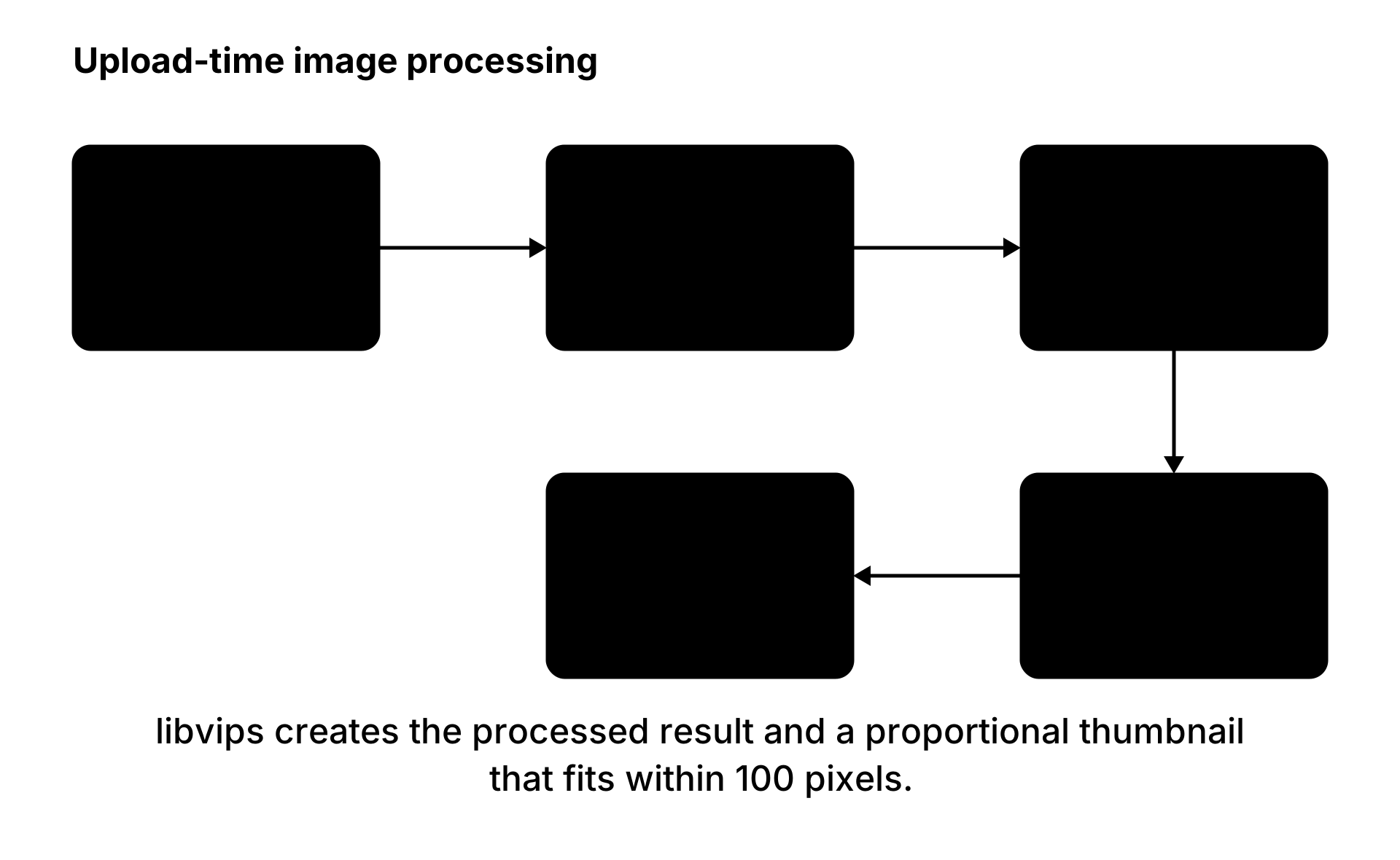
Every image saved via process_and_save_to_s3() gets a variant set derived from it: a 100×100 thumbnail plus 400px- and 1200px-wide responsive WebP re-encodes. Unlike cropping and resizing, variant derivation does not happen inline - process_and_save_to_s3() enqueues an image_variants job (handled in lib/image_processor/variants.ts, registered as a core_worker) and returns as soon as the primary is stored, so re-encoding and the extra storage writes never touch the request path. A failed derivation retries/dead-letters like any other job instead of silently skipping (the old inline behaviour).
Because enqueuing is best-effort (a queue miss just skips variants - the primary is already stored) and derivation runs out of band, there is no thumbnail_url field to read - variant keys are deterministic siblings of the primary key, so you address them by convention once you know the primary's URL:
/images/avatars/abc123.webp          ← primary (available immediately)
/images/avatars/tn_abc123.webp       ← 100×100 thumbnail (async)
/images/avatars/abc123_400w.webp     ← 400px-wide responsive re-encode (async)
/images/avatars/abc123_1200w.webp    ← 1200px-wide responsive re-encode (async)
A responsive width wider than the primary's source width is skipped rather than upscaled - e.g. a 300px-wide upload only ever gets a thumbnail, no _400w/_1200w variants. The thumbnail keeps the primary's format; responsive re-encodes are always WebP at quality 82.
The thumbnail is created using vips thumbnail_image, which uses libvips's shrink-on-load for efficient small-image generation - it doesn't load the full image into memory and then scale down.
Processing Without Storage
If you need the processed file on disk without saving to S3 or local storage, use process_image() directly:
import { process_image } from "$lib/image_processor";

const result = await process_image(temp_file_path, {
    resize: { width: 800, height: 600 },
    format: "jpeg",
    quality: 80,
});

// Use result.output_path for your own storage logic
await Bun.write("./output/my_image.jpg", Bun.file(result.output_path));

// Clean up the temp file
await Bun.write(result.output_path, "");
The caller is responsible for cleaning up the output_path file - the processor only guarantees cleanup of its own intermediate files.
Dimension Limits
The processor enforces maximum dimensions to prevent resource exhaustion:
| Limit | Value | Purpose |
|---|---|---|
| Original image dimension | 10,000 px | Rejects images wider or taller than 10k pixels before processing |
| Output resize dimension | 5,000 px | Limits the target resize dimensions |
These can be adjusted in the source (MAX_ORIGINAL_DIMENSION and MAX_OUTPUT_DIMENSION constants in lib/image_processor.ts).
Integration With File Uploads
The typical flow in a form handler:
import { process_and_save_to_s3, delete_temp_file } from "$lib/image_processor";
import { delete_from_s3 } from "$lib/s3";

export async function post_edit(req: BunRequest): Promise<Response> {
    const form_data = await req.formData();
    const file = form_data.get("avatar") as File;

    if (file && file.size > 0) {
        // Save uploaded file to temp
        const temp_path = `/tmp/uploads/${crypto.randomUUID()}`;
        await Bun.write(temp_path, file);

        // Process and save
        const result = await process_and_save_to_s3(temp_path, {
            resize: { width: 400, height: 400 },
            format: "webp",
            folder: "avatars",
            delete_original: true, // clean up the temp file
        });

        // Delete old avatar from previous save
        if (existing_record.avatar_url) {
            await delete_from_s3("users", existing_record.avatar_url);
        }

        // Store the new URL path on the user record
        new_values.avatar_url = result.s3_url;
    }

    // ... update the record
}
Getting Image Dimensions
The standalone get_image_dims() helper reads width and height without processing:
import { get_image_dims } from "$lib/image_processor";

const { width, height } = await get_image_dims("path/to/image.jpg");
console.log(`${width}×${height}`);
This uses vipsheader under the hood - it's fast even for large images since libvips only reads the header, not the pixel data.
When to Use URL Transforms Instead
The image processor is for upload-time processing - crop, resize, and convert an image once when it arrives. For on-the-fly transforms at request time (serving different sizes from the same stored image), use the S3 image transform system described in S3 Image Serving. The URL-transform approach is better when you don't know ahead of time what sizes your layout needs - the S3 proxy caches the result so subsequent requests are served from the transformed file.