File Uploads
File uploads in Reepolee are plain HTML multipart forms. The route handler reads the body with req.formData(), pulls the file out by name, and writes it either to S3-compatible storage (when configured) or to the local filesystem with Bun.write(). There's no upload library and no streaming-middleware layer - req.formData(), Bun.write(), and Bun.Image are all built into the runtime and they're enough.
The pattern Reepolee uses for user avatars is the reference implementation. It covers the four things every file upload needs: a multipart form, a server handler that reads the file, a target to write to (S3 or disk), and a way to serve the file back to the browser. Both ends - write and serve - are gated on is_s3_configured() so the same code path works in production (with S3) and in local development (without it).
The Form
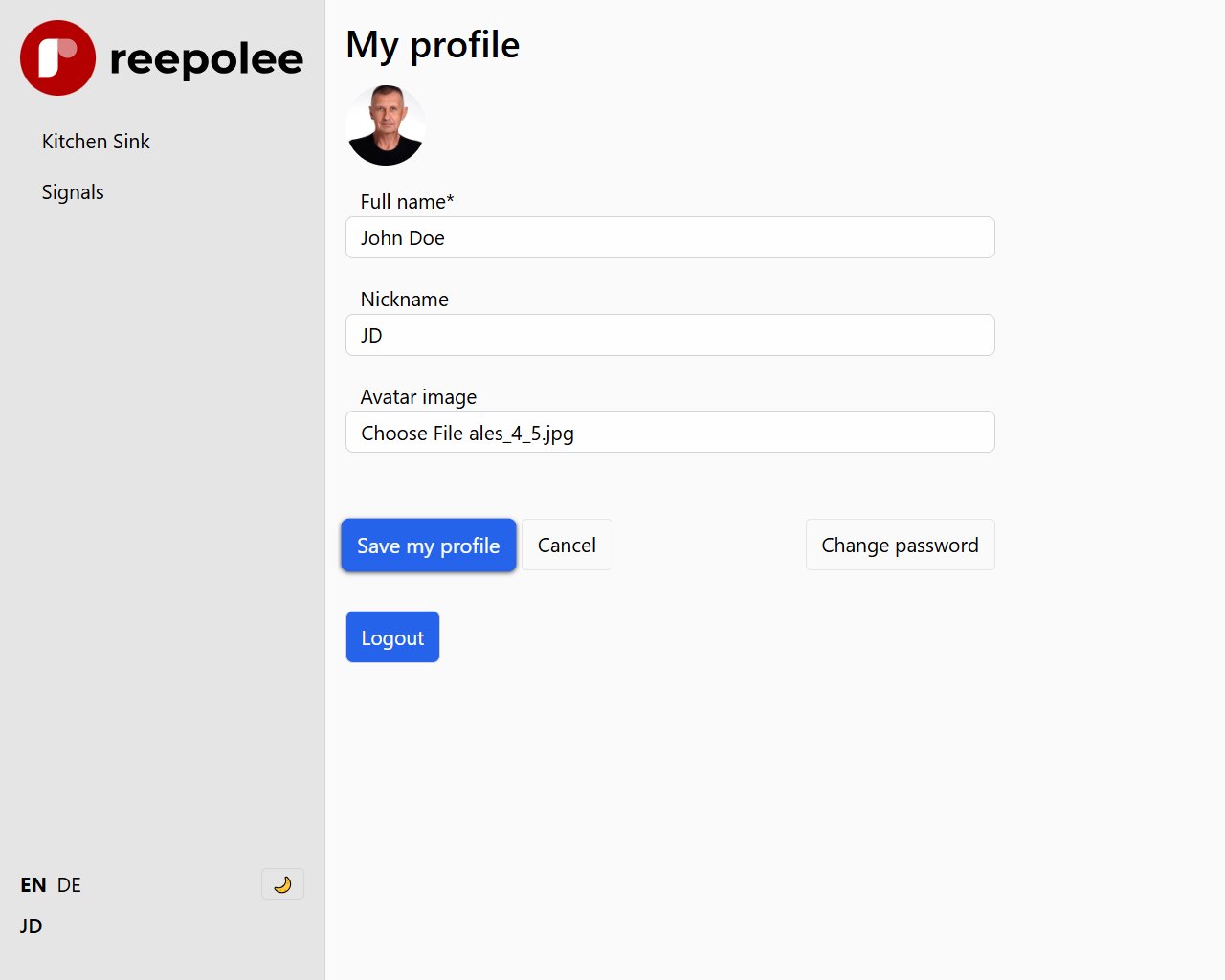
Multipart forms need enctype="multipart/form-data". Without it, the browser sends only the filename, not the file contents:
<form method="POST" action="/profile" enctype="multipart/form-data">
    <label for="avatar">Avatar</label>
    <input type="file" id="avatar" name="avatar" accept="image/*" />

    <field-wrapper class="grid">
        <label class="px-3" for="name">Name</label>
        <input type="text" id="name" name="name" value="{= props.record.name }" />
        <validation-error class="mt-1" id="error-name"></validation-error>
    </field-wrapper>

    <button type="submit" class="primary">Save</button>
</form>
accept="image/*" tells the browser to filter the file picker to image types. It's a hint, not a guarantee - always validate the file type on the server too.
For multiple files, add multiple to the input and read form_data.getAll("name") instead of form_data.get("name") in the handler.
The Handler
Read the body with req.formData(). That returns a FormData object - the same one the browser builds for fetch() requests - where text fields come back as strings and file inputs come back as File objects:
import { save_avatar_upload } from "./avatar";

export async function post_auth_profile(req: BunRequest): Promise<Response> {
    const ctx = await create_ctx(req, import.meta.dir);
    const form_data = await req.formData();

    const data = {
        name: (form_data.get("name") as string)?.trim() || "",
        nickname: (form_data.get("nickname") as string)?.trim() || "",
    };

    const avatar_file = form_data.get("avatar") as File | null;

    // ... validate the text fields ...

    let avatar_filename: string | undefined;
    if (avatar_file && avatar_file.size > 0) {
        try {
            avatar_filename = await save_avatar_upload(avatar_file);
        } catch {
            return render("auth/profile/form", {
                data: { ...data, form_error: "avatar_upload_failed" },
                ctx,
            });
        }
    }

    await update_user_profile(user_id, { ...data, avatar_filename });
    return Response.redirect("/profile", 303);
}
A few things worth highlighting:
avatar_file.size > 0is the check for "did the user actually upload a file?" When the file input is left empty,form_data.get("avatar")is still aFileobject - just with zero size.- The text fields and the file field share the same form. Validate the text fields with your usual Zod schema; the file is handled separately because it isn't a string and doesn't belong in the schema.
- The handler returns a redirect on success, just like any other form. The avatar filename is saved to the database and the next request picks it up.
Writing to Storage
The reference avatar helper picks a backend at runtime - S3 when configured, the local filesystem otherwise - and uses the same generated filename for both:
// platform/auth/avatar.ts
import { mkdir } from "fs/promises";
import { join } from "path";
import { is_s3_configured, save_to_s3 } from "$lib/s3";

const AVATAR_BUCKET = "users";
const AVATAR_PREFIX = "avatars";
export const AVATAR_DIR = join(process.cwd(), "static", "avatars");

export async function save_avatar_upload(file: File): Promise<string> {
    const ext = file.name.includes(".") ? "." + file.name.split(".").pop()!.toLowerCase() : "";
    const stored_name = `${crypto.randomUUID()}${ext}`;

    if (is_s3_configured()) {
        await save_to_s3(AVATAR_BUCKET, `${AVATAR_PREFIX}/${stored_name}`, file, {
            type: file.type || "application/octet-stream",
            acl: "public-read",
        });
    } else {
        await mkdir(AVATAR_DIR, { recursive: true });
        await Bun.write(join(AVATAR_DIR, stored_name), file);
    }

    return resize_avatar(file, stored_name);
}
The pattern, in five steps:
- Generate a unique filename with
crypto.randomUUID()so two users can't collide and existing files are hard to guess. - Branch on backend.
is_s3_configured()(from$lib/s3) returnstruewhen access key, secret, and endpoint are all set. - On S3,
save_to_s3(bucket, key, data, options)auto-creates the bucket on first upload and writes the file.acl: "public-read"makes the resulting object reachable through the proxy described below; drop it if you'd rather generate a presigned URL for every fetch. - On disk,
Bun.write(dest, file)streams the file without loading it into memory. - Return the canonical filename. The example calls
resize_avatar(file, stored_name)next - see Resizing. For uploads that don't need post-processing, returnstored_namedirectly.
Bun.write() and save_to_s3() both accept Blob, BunFile, Response, strings, and Uint8Array, so the same helper shape works for any source that can produce bytes - not just File objects.
Serving the File Back
There are two paths a stored file can travel back to the browser, depending on whether you went through S3 or wrote to disk. The <img> tag in your template doesn't change either way:
<img src="/avatars/{= props.user.avatar_filename }" alt="{= props.user.name }" />
From disk. Anything under static/ is served automatically by the fetch fallback in apps/main/server.ts. In production it gets a one-year immutable cache header (safe because the UUID filename never changes); in development it's served with Cache-Control: no-store so edits are visible immediately.
From S3. apps/main/server.ts calls register_s3_mount({ url_prefix: "/avatars/", bucket: "users", immutable: true }) at startup. On every request the fallback first runs handle_s3_request(url) - when the URL matches a registered mount, the helper fetches the object via a presigned URL, applies the configured cache header (public, max-age=31536000, immutable when immutable: true), and returns the bytes. The same /avatars/<filename> URL works for both backends, which keeps templates portable across environments.
Register additional mounts the same way for other resource types - register_s3_mount({ url_prefix: "/uploads/", bucket: "files" }) and so on. Mounts are matched longest-prefix-first so a more specific path always wins.
Validating Uploads
req.formData() doesn't validate anything. Always check the file before writing it:
- Size:
file.sizeis the byte count. Reject anything above your limit before callingBun.write(). - Type:
file.typeis the MIME type the browser claims. Don't trust it blindly - verify by reading the file's leading bytes if it matters (PDF starts with%PDF, PNG starts with\x89PNG, JPEG starts with\xFF\xD8\xFF). - Extension: derive from
file.nameafter splitting on the last.. Reject extensions you don't expect rather than allowing everything.
A reasonable guard for image uploads:
const MAX_BYTES = 5 * 1024 * 1024; // 5 MB
const ALLOWED_TYPES = ["image/jpeg", "image/png", "image/webp", "image/gif"];

if (avatar_file.size > MAX_BYTES) {
    return form_error("file_too_large");
}
if (!ALLOWED_TYPES.includes(avatar_file.type)) {
    return form_error("file_type_not_allowed");
}
Resizing and Processing
Bun's built-in Bun.Image runs the decode/resize/encode chain off-thread without any npm dependency. The avatar helper uses it to produce a 128×128 WebP variant of every uploaded image:
export async function resize_avatar(file: File, stored_name: string): Promise<string> {
    const base_name = stored_name.replace(/\.[^.]+$/, "");
    const resized_name = `${base_name}_128_128.webp`;

    const file_bytes = await file.bytes();
    const img = new Bun.Image(file_bytes);
    const pipeline = img.resize(128, 128, { fit: "inside" }).webp({ quality: 80 });

    if (is_s3_configured()) {
        const webp_bytes = await pipeline.bytes();
        await save_to_s3(AVATAR_BUCKET, `${AVATAR_PREFIX}/${resized_name}`, webp_bytes, {
            type: "image/webp",
            acl: "public-read",
        });
    } else {
        await mkdir(AVATAR_DIR, { recursive: true });
        await pipeline.write(join(AVATAR_DIR, resized_name));
    }

    return resized_name;
}
A few things worth highlighting:
- The resized filename derives from the original.
<uuid>.jpgbecomes<uuid>_128_128.webp, so you can correlate the two and clean both up together if you ever need to. fit: "inside"preserves aspect ratio and pads no pixels - a portrait shot becomes 128×something rather than being squashed..write(path)or.bytes()picks the output sink. Local writes can stream straight to disk; S3 needs the bytes in hand so they can be uploaded as the request body.- The original is kept. The example uploads both the original and the resized version. Drop the original-upload call in
save_avatar_uploadif you only ever want the resized file on storage.
If Bun.Image doesn't cover your use case (PDF rendering, EXIF stripping, multi-page TIFFs), reach for a native binary via Bun.spawn (ImageMagick, ffmpeg, vips-tools) or an npm library like sharp. The shape of the helper doesn't change - read the file, transform, write to the same backend, return the new filename.
Storage in Production
The two backends - local disk and S3 - each have their place. Choose with deployment shape, not file size.
Local disk is the right choice for a single VPS where uploads are part of the same backup story as the database. The notes worth honouring:
- Don't commit uploads to git. Add
static/avatars/(and any other upload directories) to.gitignore. Otherwise every deploy overwrites real user uploads with whatever was in the repo. - Mount a persistent disk. A simple deployment on a VPS works fine - the upload directory persists across restarts. For containers and ephemeral hosts, bind-mount a real volume at
static/avatars/. - Back up the upload directory. It's user data, not artifacts. Treat it the same way you treat the database.
S3-compatible storage is the right choice once you outgrow a single box, want a CDN in front of uploads, or run on ephemeral hosts. Set STORAGE=s3, S3_ACCESS_KEY_ID, S3_SECRET_ACCESS_KEY, and the endpoint (S3_HOSTNAME, with optional S3_PORT/S3_PROTOCOL - the endpoint is built as S3_PROTOCOL://S3_HOSTNAME:S3_PORT), plus optionally S3_REGION. is_s3_configured() flips the helper over automatically, and the process refuses to boot if STORAGE=s3 is set with an incomplete block. Anything S3 API-compatible works: AWS S3, Cloudflare R2, Backblaze B2, MinIO for a self-hosted setup.
For local development against S3, podman run (or docker run) a MinIO container - the README in the project root has a copy-pasteable command. The same .env keys point at MinIO locally and at production object storage in deploy, so the application code never has to know which one it's talking to.
The <file-upload> component and file library
Everything above is the from-scratch pattern for a file that belongs to one
record (an avatar on a user). For general document uploads - contracts,
invoices, attachments that live in their own library and get referenced from many
places - Reepolee ships a batteries-included path: the <file-upload> component
and the /files route.
The client side of both upload controls - the init pattern, the async upload flow, the dropzone interactions, and the hidden-input sync - is covered in Upload Components.
Unlike the manual avatar form (which posts the file as part of the record's own
form), <file-upload> uploads the file asynchronously the moment it's picked,
to POST /files/save, and drops the stored path into a hidden input. The
surrounding form then submits that path like any other text field.
<file-upload
    name="contract_file"
    label="Contract"
    folder="contracts"
    module="sales"
></file-upload>
| Attribute | Purpose |
|---|---|
name | Name of the hidden input that receives the stored file path (the value your form submits) |
value | Existing stored path, to pre-fill on edit |
folder | Storage folder (namespaces the S3 key), e.g. contracts |
show-folder | "true" renders an editable folder field so the user picks the folder |
folder-input | ID of an external input to read the folder from instead |
module | Requires the caller to hold this module permission before the upload is accepted |
label | Label shown above the dropzone |
The component renders a click-or-drag dropzone, a spinner while uploading, and a
status line. It accepts document types
(.pdf,.doc,.docx,.xls,.xlsx,.ppt,.pptx,.txt,.csv,.zip) up to 25 MB; the server
validates both. On success /files/save returns JSON
(db_id, s3_url, filename, s3_key, original_filename, size_kb), inserts
a row into the files table, and the component stores s3_url in the hidden
input. Uploads require an authenticated session, and the module attribute gates
them further.
All of the component's user-facing strings come from the root namespace
translations (the {locale}.json at the repository root): labels.folder (the
folder label), errors.file_upload_invalid_type, messages.file_upload_uploaded,
errors.file_upload_failed, and the dropzone hint pieces ui.file_upload_click,
ui.file_upload_or, ui.file_upload_drag_drop, and ui.file_upload_here. The
component reads them with {_ ... } lookups into data-msg-* attributes, so they
localise automatically per request like any other translation.
The _file domain type
You rarely write the tag by hand. Name a column with the _file suffix
(contract_file, invoice_file) and the generator maps it to the file domain
type (VARCHAR(255), storing the path - not the bytes) and renders <file-upload>
in the generated CRUD form automatically, exactly as _image columns render
<image-upload>. See Input Components for
the markup, and Upload Components
for how the client behaves.
The /files library
/files is a generated CRUD panel over the files table - list, upload,
edit metadata (title, description, tags), and bulk-delete stored documents in one
place. Files are served back through the /files/ S3 mount registered at startup
(bucket from S3_FILE_BUCKET, default files), the same longest-prefix mount
mechanism described in Serving the File Back. It's the
document counterpart to per-record image uploads: a shared library other records
reference by path.
Without JavaScript
The whole upload flow above works with JavaScript disabled - it's just a regular multipart form. There's no FormData JavaScript construction, no XMLHttpRequest, no progress bar. The browser shows its native file picker, submits the form, and reloads the page.
If you want a progress indicator or a drag-and-drop dropzone, layer that on top with a small script using signals or a custom element - but the underlying form keeps working for users without it.